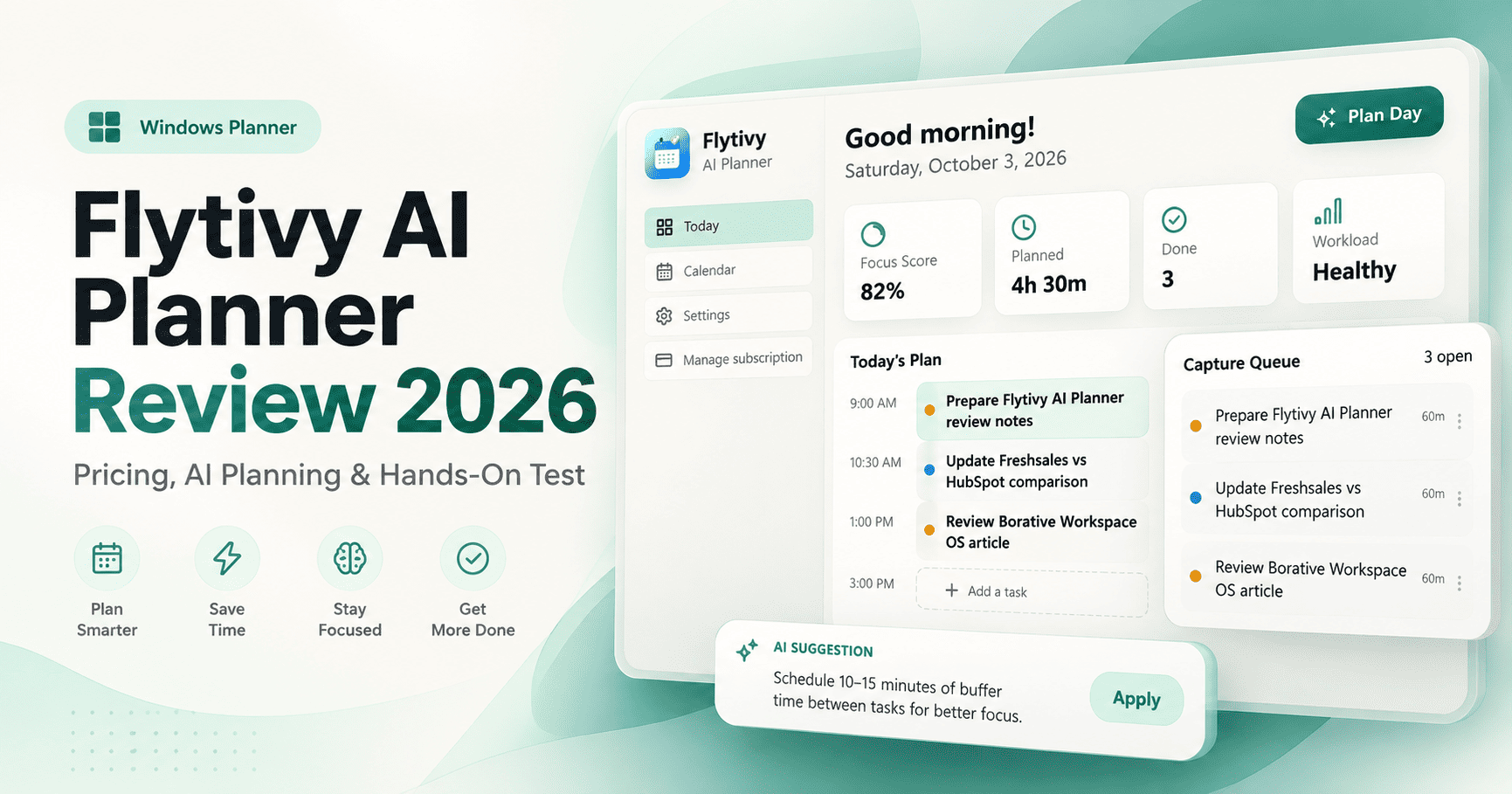
Flytivy AI Planner is a Windows desktop planning app that turns loose tasks into scheduled work using AI-assisted day and week planning. In our guided hands-on test, its manual task controls, Calendar/Gantt views, persistence, and alarms worked more reliably than the AI planning layer. Plan Day and Plan Week did create schedules, but we also saw unusual time blocks, intermittent service errors, and AI Coach responses that did not always answer the question asked.
This Flytivy AI Planner review 2026 covers current pricing, AI credits, Capture Queue, Analyze day, Plan Day, Plan Week, Replan, Calendar, alarms, AI Coach, Focus Score, and what we found after testing the Free plan on October 4, 2026.
Research note: product positioning, plan pricing, AI credit allowances, and published credit costs were checked against Flytivy’s official Power CM Software pages in October 2026. The hands-on findings below come from a guided test in the Windows app using the AI Workflow Stack Editorial Team account. The user operated the app while the assistant guided the test and analyzed screenshots and results. We did not connect external accounts or purchase a paid plan.
Quick Verdict
Flytivy AI Planner is worth testing if you want a Windows-based workflow for task capture, AI scheduling, calendar visibility, and reminders. In our Free-plan test, the manual task and alarm features were more dependable than the AI planning layer. Plan Day and Plan Week produced useful changes, but generated odd early-hour blocks, displayed confusing service errors, and required close human review.
Best for: Windows users, solo operators, founders, consultants, and small teams that want AI-assisted planning around a visible schedule.
Less ideal for: users who expect fully reliable autonomous planning, transparent scoring logic, or advanced execution features on the Free plan.
What Is Flytivy AI Planner?
Flytivy AI Planner is a Power CM Software product for Windows that combines a task inbox, AI planning, Calendar/Gantt views, reminders, a planning command center, and an AI Coach. The official positioning is not “another calendar,” but a planning layer designed to help decide what should happen next and convert open work into an executable day or week.
The workflow is intentionally simple: capture work, let the planner shape it into time blocks, review the result, execute, and replan when priorities change. Flytivy says the planner can use open tasks, deadlines, workload, meetings, duration, priority, and energy-related inputs when shaping a schedule.
Flytivy AI Planner Pricing in 2026
| Plan | Price | AI capacity | Key differences |
|---|---|---|---|
| Free | $0 | 30 AI credits in each of the first 2 account months | Capture, Calendar/Gantt, AI Coach, Plan Day, Plan Week, Replan, widget mode; no Advanced Focus Mode or Daily Review |
| Pro | $7.99/month | 350 AI credits/month | Adds Advanced Focus Mode and Daily Review |
| Ultimate | $12/month | 900 AI credits/month | Same core planning layer with a larger monthly AI allowance |
Flytivy’s official resource page states that the Free plan receives 30 AI credits in each of the first two associated-account months. From month three, Free receives no new monthly AI credits unless the user upgrades.
How Flytivy AI Credits Work
| Action | Published / observed credit cost |
|---|---|
| Plan Day | 1 credit |
| Plan Week | 1 credit |
| Replan | 1 credit |
| AI Coach message | 0.25 credits |
| Analyze day | 0.25 credits observed in one measured test |
The first four costs above are based on Flytivy’s published plan information, except Analyze day: we measured a drop from 23.25 to 23 credits after one Analyze day execution. We did not verify whether that observed cost is guaranteed across every account or future version.
Try Flytivy AI Planner
Want to test the planner yourself? The Free plan is enough to evaluate Capture, Calendar/Gantt, AI Coach, Plan Day, Plan Week, Replan, and the first two months of AI credits before paying.
How We Tested Flytivy AI Planner
We tested Flytivy on October 4, 2026 using the AI Workflow Stack Editorial Team account on the Free plan. The user performed actions in the Windows app and shared screenshots and results while the assistant guided the test and analyzed the evidence.
A remote-control environment could detect Flytivy, but it could not reliably capture the application window. For that reason, this should be understood as a guided hands-on test based on direct user interaction and screenshots, not a fully assistant-operated remote session.
We intentionally did not connect Google, email, calendar, Slack, or other private accounts, and we did not purchase Pro or Ultimate.
Capture Queue and Task Duration
Flytivy’s Capture Queue worked correctly for basic task intake. We captured “Revisar el borrador del review de Flytivy”, and it appeared as an open task with a 60-minute duration and no visible scheduled date.
One limitation appeared in the Capture Queue duration control: the user could not save a 40-minute duration there and the field returned to 60 minutes. We did not determine whether that was caused by the field behavior, a specific input interaction, or a limitation of the Capture interface.
Later, the normal Edit action successfully saved a 40-minute task. That means Flytivy is not generally limited to 60-minute task durations.
Analyze Day: Useful Context, but Some Confusing Recommendations
Analyze day correctly recognized the pending task and recommended a 60-minute work session. It did not automatically schedule the task: Capture Queue remained open and Today’s Plan stayed empty, which makes sense for an analysis action rather than a planning action.
We also measured one Analyze day execution at 0.25 AI credits.
The quality of the analysis was mixed. We observed several inconsistencies:
- It described the review as running from 5:00–6:00 p.m. even though Today and Calendar showed 1:00–2:00 p.m..
- The four-hour difference suggested a possible timezone relationship, but we did not verify that hypothesis.
- It recommended reserving time for conclusions “tomorrow” even though that task was already scheduled on Monday from 5:00–6:00 a.m..
- It used “today” and “tomorrow” while a different date was selected in the interface, which made the reference date unclear.
- It referred to energy as “balanced,” but we did not find a visible Settings control for that profile.
So Analyze day was useful for surfacing general workload guidance, but we would verify its time references against the actual Calendar before acting on them.
Plan Day: It Created a Schedule, but the Timing Was Strange
Our first Plan Day attempt returned “Service temporarily unavailable” and did not schedule the task.
The second attempt did save a plan. Flytivy created these blocks for Sunday, October 4:
| Time | Block |
|---|---|
| 4:30–5:00 a.m. | Break / Buffer Time |
| 7:00–7:15 a.m. | Break / Buffer Time |
| 9:15–10:00 a.m. | Lunch / Rest |
| 1:00–2:00 p.m. | Revisar el borrador del review de Flytivy |
Capture Queue moved to 0 open, Focus Score fell from 82% to 60%, and Workload changed from Healthy to Light.
The task itself was scheduled sensibly in the afternoon, but the planner also inserted a 4:30 a.m. buffer and a 9:15 a.m. lunch block. We could not find visible working-hours, meal-time, or timezone controls in Settings that would explain those choices.
This matters because Flytivy’s core promise is realistic planning. In our test, the generated schedule still needed human review before we would treat it as executable.
Plan Week: Changes Saved Despite an Error Message
We then captured “Preparar conclusiones del review de Flytivy” as a 60-minute task and ran Plan Week once.
Flytivy displayed “Service temporarily unavailable”, but the operation also saved changes:
- it added “Buffer for review completion” on Sunday from 2:00–2:30 p.m.;
- it scheduled the conclusions task for Monday, October 5 from 5:00–6:00 a.m.;
- Capture Queue moved from 1 to 0 open;
- Focus Score changed from 60% to 75%;
- Workload changed from Light to Healthy.
We verified the Monday task in Calendar using both Week and Day views.
This was one of the most important findings in the test: the visible error message did not clearly reflect the final state. Because changes had been saved, immediately retrying the action without checking Calendar could create confusion or potentially duplicate planning work.
Manual Editing, Rescheduling, and Duplicating Worked Well
Flytivy was more predictable when we manually adjusted the generated schedule.
- Edit: reduced the review from 60 minutes to 40 minutes, changing it to 1:00–1:40 p.m.
- Reschedule: moved the review to 3:00–3:40 p.m. while keeping the 40-minute duration.
- Duplicate: created a copy from 3:55–4:35 p.m., leaving a 15-minute gap.
- Edit copy: expanded the duplicate to 60 minutes, ending at 4:55 p.m.
The manual controls were straightforward and the edits persisted correctly.
One contextual issue remained: the 2:00–2:30 p.m. “Buffer for review completion” did not move when the review task was rescheduled to 3:00 p.m. The buffer was therefore left before the task it appeared to reference.
Planned, Focus Score, and Workload
The Planned metric appears to include breaks and buffers, not only work tasks. Our observations also support rounding to the nearest whole hour:
| Visible block total | Planned displayed |
|---|---|
| 2 h 30 min | 3 h |
| 2 h 40 min | 3 h |
| 3 h 20 min | 3 h |
| 3 h 40 min | 4 h |
Focus Score was less transparent. It began at 82% on an empty day, moved to 60% after Plan Day, then to 75% after Plan Week. After closing and reopening Flytivy, it returned to 82% even though the visible schedule had not changed.
We did not find a visible explanation of the Focus Score formula, so we would treat it as a directional indicator rather than a metric we can independently validate.
Replan: Failed Without Visible Credit Loss in Our Attempt
We ran Replan with a visible balance of 23 / 30 credits.
The attempt returned “Service temporarily unavailable”. It did not change the visible schedule, did not correct the misplaced buffer, and the credit balance remained at 23.
That suggests this failed attempt did not consume a visible credit. We cannot generalize that behavior to every failed request.
Calendar and Gantt Views
We reviewed Flytivy’s Day, Week, Month, and Year views. The Calendar reflected tasks, dates, and manual edits correctly, including the Monday 5:00–6:00 a.m. task created by Plan Week.
The interface behaves like a Gantt-style timeline with horizontal scrolling. One usability tradeoff is that when scrolling far enough into later hours or months, task names can move outside the visible portion of the screen.
Month and Year correctly surfaced six blocks on October 4 and one on October 5 during our test.
Daily Review was visible but marked as a Pro feature, so we did not test it.
Completing Tasks Was Not Obvious
We could not find a reliable way to mark a task as completed during the test.
The gray circle did not respond to the user’s click, clicking the title did not expose a completion action, and the task menu contained Reschedule, Edit, Duplicate, and Delete but no visible Complete option.
This does not prove that completion is unavailable. It means we could not locate or verify the action in the tested interface. The Done counter remained at 0.
AI Coach: Good at Reading the Agenda, Weak on a Simple How-To Question
We asked AI Coach twice how to complete a task and explicitly told it not to modify anything.
Both responses summarized or enumerated the agenda instead of answering the question.
The positive side is that the Coach correctly read all six visible schedule blocks and their times. The limitation is instruction-following: it had useful calendar context but did not resolve a straightforward product-usage question.
Despite the published 0.25-credit cost per Coach message, the visible balance remained at 23 after both measured questions. We did not determine why, so we would not assume Coach messages are always free or always charged immediately.
Alarm Test: One of the Strongest Results
Flytivy’s alarm feature worked well in our test.
We created “Flytivy alarm test” for October 4 at 5:27 p.m. The app showed 1 active alarm. With Flytivy open in the background while the user was working in ChatGPT, the alarm:
- triggered at the expected time;
- played a sound;
- displayed a dialog in front of ChatGPT;
- showed an alert inside Flytivy;
- returned the active-alarm count to 0 after firing.
We did not test whether alarms fire when Flytivy is fully closed.
Settings and Persistence
Settings exposed only visual preferences in our test:
- language;
- theme;
- font;
- font size.
We did not find visible controls for timezone, workday start/end, lunch time, or an energy profile. That makes the very early AI-generated blocks harder to explain or correct at the settings level.
Persistence worked correctly. After restarting Flytivy, the edited review, duplicated task, and other calendar blocks remained in place. Planned stayed at 4 hours. The main unexplained change was Focus Score returning from 75% to 82%.
What We Liked
- Simple task capture: Capture Queue is easy to understand and separates unscheduled work from the calendar.
- Strong manual controls: editing, rescheduling, and duplicating tasks worked reliably.
- Useful Calendar/Gantt visibility: Day, Week, Month, and Year reflected schedule changes correctly.
- Good persistence: edits survived an app restart.
- Effective alarms: the reminder fired in the background with both sound and a foreground dialog.
- Free AI trial: 30 credits in each of the first two account months is enough to test the planning workflow before paying.
What Could Be Better
- AI planning reliability: we encountered multiple “Service temporarily unavailable” messages.
- Error-state clarity: Plan Week saved changes even while reporting an error.
- Odd schedule choices: the planner inserted blocks as early as 4:30 a.m. and scheduled one task at 5:00 a.m.
- Limited visible scheduling preferences: we could not find work-hour, timezone, lunch, or energy-profile controls in Settings.
- AI Coach instruction-following: it read the agenda but did not answer a simple question about completing a task.
- Focus Score transparency: the score changed across planning actions and app restarts without an explanation we could verify.
- Task completion discoverability: we could not locate a confirmed Complete action during the test.
Who Should Consider Flytivy AI Planner?
Flytivy is most interesting for Windows users who want more than a static task list but do not want a full project-management platform.
It may fit:
- solo professionals;
- founders and operators;
- consultants;
- remote workers;
- small teams that want time-block planning rather than a large Kanban system;
- users comfortable reviewing and correcting AI-generated schedules.
If you need highly predictable automated scheduling, mature team project management, or deep workflow automation between external apps, Flytivy solves a different problem. For automation-focused comparisons, see our n8n vs Zapier and Make vs Zapier guides.
You can also compare this hands-on test with our Borative Workspace OS Review 2026, another Power CM product we evaluated using real workflow tasks.
Is Flytivy AI Planner Worth It?
The Free plan is worth testing. It gives you enough AI credits to see whether the planning model fits your work before paying, and several non-AI parts of the product worked well in our test.
We would be more cautious about upgrading solely for AI planning. The planner produced real schedules, but we also saw unusual hours, confusing error states, an unexplained Focus Score, and a Coach that failed to answer a simple usage question.
We did not test Pro-only Advanced Focus Mode or Daily Review, so this review does not provide enough evidence to recommend Pro or Ultimate specifically.
Flytivy AI Planner FAQ
Is Flytivy AI Planner free?
Yes. Flytivy currently offers a Free plan at $0 with 30 AI credits in each of the first two associated-account months. Its official resource page states that Free receives no new monthly credits from month three unless the user upgrades.
How much does Flytivy Pro cost?
Flytivy Pro is currently listed at $7.99 per month with 350 AI credits per month plus Advanced Focus Mode and Daily Review.
How much does Flytivy Ultimate cost?
Ultimate is currently listed at $12 per month with 900 AI credits per month.
How many credits do Plan Day and Plan Week use?
Flytivy’s official documentation states that Plan Day, Plan Week, and Replan each cost 1 AI credit.
How much does AI Coach cost?
The official documentation lists AI Coach messages at 0.25 credits each. In our measured Coach test, the visible balance did not change after two messages, so we could not verify how or when that cost was applied in the tested account.
Does Flytivy work like a normal calendar?
Flytivy includes Calendar and Gantt views, but the product is positioned around automatic work planning: capturing tasks and converting them into scheduled blocks rather than serving primarily as a traditional calendar.
Did Flytivy’s AI planning work in our test?
Partially. Plan Day and Plan Week both created schedule changes, but we also encountered service errors, odd early-hour blocks, and recommendations that did not always match the visible calendar. We recommend reviewing every generated plan before relying on it.
Do Flytivy alarms work?
In our test, yes. An alarm fired while Flytivy was running in the background, played a sound, and displayed a foreground reminder. We did not test alarms with the app fully closed.
Bottom Line
Flytivy AI Planner is more convincing today as a lightweight Windows planning workspace with strong manual controls and reminders than as a planner we would trust to run autonomously.
Capture, manual editing, rescheduling, duplication, Calendar/Gantt views, persistence, and alarms all worked during our test. The AI layer was more uneven: Plan Day and Plan Week could create schedules, but generated unusual timing, returned intermittent errors, and sometimes produced context or instruction-following inconsistencies.
Our recommendation is to start with Free, inspect every generated schedule, and decide whether the AI workflow is reliable enough for your own routine before upgrading.
Interested in testing Flytivy? You can open Flytivy AI Planner here. We may earn a commission on eligible purchases at no additional cost to you.